Introduction: Why It's So Easy to Miss That One Important Email
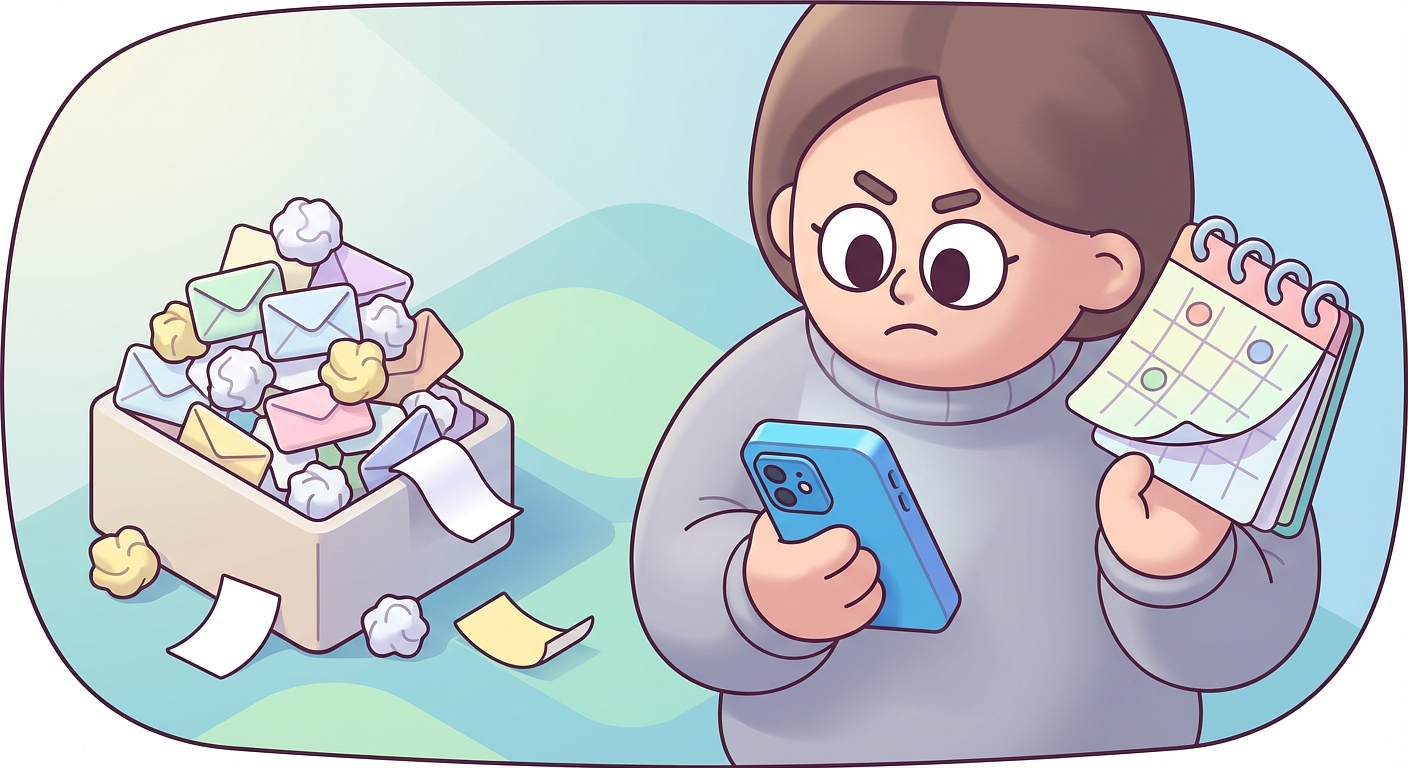
You wake up and realize it's picture day, but your kid is in a stained t-shirt. Or you find out the permission slip for tomorrow's field trip was due yesterday. We've all been there, right?
Even with the best intentions, us busy parents keep making the same slip-ups with school emails. The good news is, we can fix them with some simple changes. For the full strategy, see our ultimate guide to managing school emails.
Mistake #1: Relying on One Shared Parent Inbox
The Problem
Lots of us share one email for school stuff, thinking it'll keep both parents in the loop. But it often leads to mix-ups like both replying to the same message, or assuming the other one took care of it. Then there's the blame game: I thought you saw that.
Plus, searching through a mess of emails from different schools and kids is a nightmare.
The Fix
Set up a dedicated family email that both of you can access. Try Gmail with shared access. Name it something clear like [email protected]. Make sure both get notifications. Forward emails from multiple schools to this one spot. Tools like EmailSnapshot can create a unified digest for both of you.
Pro Tip
Pick a weekly time to review the digest together. It helps share the load and keeps you on the same page.
Mistake #2: Ignoring Filters and Labels
The Problem
Without sorting, school emails get lost in your inbox with work stuff, ads, and personal messages. Important updates on schedules or deadlines just vanish.
The Fix
Gmail Users:
1. Create filters based on sender domains

2. Apply labels like "School - Urgent" or "School - [Child Name]"

3. Auto-star high-priority senders (principal, teachers)

4. Set up color coding for different schools
Outlook Users:
1. Use Rules to automatically sort incoming emails

2. Create folders for each child/school

3. Flag messages containing keywords like "deadline" or "permission"

4. Set up Quick Steps for common actions
Advanced Organization
Sort by urgency: immediate, this week, or reference. Make folders for each child. Group by category: academic, sports, events, or administrative.
Link to our detailed tutorial: How to Automatically Sync School Emails to a Calendar in 10 Minutes
Mistake #3: Missing Calendar Invites and Attachments
The Problem
School emails hide key info in PDF attachments you forget to save, calendar invites that don't sync to your phone, scattered event details, or forms that disappear when you need them.
The Fix
Immediate Actions:
Download important PDFs to a shared folder like Dropbox or Google Drive. Add events to your calendar right away. Screenshot forms for quick checks. Print urgent ones and stick them on the fridge.
Automated Solution:
EmailSnapshot can automatically pull out dates for calendar events, flag attachments, summarize deadlines, and store form references in your digest.
Create a System
Digital Filing Cabinet:
School Docs/

├── 2025-2026/

│   ├── Forms/

│   ├── Calendars/

│   ├── Permission Slips/

│   └── Report Cards/
Mistake #4: Not Checking Junk Folders and Alternate Tabs
The Problem
Gmail's tabs and spam filters can hide school emails in promotions or updates, or mark them as spam. You end up missing important stuff that never reaches your main inbox.
The Fix
Prevention:
Add school addresses to contacts. Mark them as not spam when you find them. Set filters to deliver to inbox. Whitelist school domains.
Gmail Tabs Fix:
Drag school emails to primary. When Gmail asks if you want this for future messages, say yes. Or turn off tabs altogether.
Weekly Maintenance:
Remind yourself to check spam every Monday. Scan promotions for school notes. Keep marking school emails as important to train the filters.
Recovery Mode
If you've missed some, search your whole inbox including spam for the school domain. Export them to review. Set up filters now. Ask another parent what you might have missed.
Mistake #5: No Centralized Digest or Weekly Routine
The Problem
Checking emails all day long disrupts everything. It pulls you away from work, interrupts family time, and leaves no space to think things through. It's exhausting.
The Fix
Adopt the Digest Model:
Get one summary instead of tons of emails. A daily digest for quick updates, weekly for the week ahead, and monthly for the big picture.
Create a Weekly Routine:
Sunday Evening (15 minutes):
Review the weekly digest. Add events to the family calendar. Prep what you need for the week. Tell the kids what's coming up.
Daily Quick Check (5 minutes):
Morning: Look at today's schedule. Evening: Check for updates.
End-of-Week Review (10 minutes):
Archive done emails. Update your family command center. Peek at next week.
The EmailSnapshot Advantage
EmailSnapshot automatically pulls all school emails into one digest, processes dates and actions, syncs to your calendar, makes them searchable, and shares with your partner. No more digging through emails or worrying about misses.
Bonus Mistake: Using Reply-All Unnecessarily
The Problem
A quick Thanks!
reply-all goes to 50 parents who then have to delete it. If everyone does it, it's a total email storm. If you're a coach dealing with this from the other side, check out how coaches handle sports team email overload.
The Fix
Reply just to the sender unless asked otherwise. Drop others from CC when not needed. Use group apps for chats. Ask schools to use no-reply for announcements.
Wrap-Up: Easy Wins for Busy Families
You don't have to do it all at once. Start small: set up filters this week, add a review routine next week, and try EmailSnapshot this month.
Before you start forwarding emails, it's worth reading up on privacy and security when forwarding school emails so you know exactly what's happening with your data.
Every family is different. Find what fits your life and stick with it.
Take Action Today
Let's stop these slip-ups. EmailSnapshot puts all your school communications into one organized digest, cutting the chaos so you never miss an update.